Get bulk orders for 30% less than local suppliers, plus free samples.
Get bulk orders for 30% less than local suppliers, plus free samples.
You have a killer design ready. You know exactly what size your sticker should be. You click "upload," and then the prompt hits: What file type should you submit?
Choosing the wrong file format is one of the most common—and most costly—mistakes I see in my print shop. You might end up with blurry edges, colors that look completely different from your screen, or fonts that shift halfway through the run. I have run millions of stickers through my presses, and I can tell you that the quality of the final product starts with the digital file you send over.
The industry secret is simple: Vector files are king, but knowing when to use PNGs versus PDFs can save you hours of prepress time. Let’s break down exactly what you need to know to get factory-perfect results every time.
In the simplest terms, a file type (or format) is the way your digital design is packaged and stored. When it comes to custom stickers and labels, not all file packages are created equal.
There are two main categories you need to understand:
Vector Files (AI, EPS, PDF): These files are made of mathematical paths. Because they are not made of pixels, they can be scaled infinitely. A tiny logo and a billboard-sized graphic will look equally sharp. For die-cutting custom shapes, this is the industry gold standard. The file essentially tells our cutting machine: "Move the blade exactly 2.5 inches along this curve."
Raster Files (PSD, JPEG, PNG, TIFF): These files are made of pixels—millions of tiny colored squares arranged in a grid. They are great for complex photography or digital art with soft gradients and textures. However, they have a fixed resolution. If you try to make them larger than their intended size, the machine has to "guess" the missing pixels, resulting in that dreaded blurry, jagged edge we call pixelation.
I often get asked, "Why can’t you just print the JPG I downloaded from my Instagram?"
Technically, the machine can print it. But here is what happens behind the scenes in a professional factory setting.
When your order enters our workflow, our prepress team does not just hit "print." We use your file to create the die line (the exact cutting path) and to set up the color separations (splitting your artwork into the individual ink layers: Cyan, Magenta, Yellow, Black, and possibly White or Foil).
If you send a low-resolution raster file with a complex shape, we face immediate technical hurdles:
The Edge Problem: If the artwork has a soft, feathered edge, our die-cutting machine—which requires a hard, mathematical path—does not know where to cut. Does the blade follow the 50% opacity point? The 10%? This ambiguity leads to inconsistent cuts or rejects.
The Scaling Trap: A logo saved as a 72 DPI JPEG looks fine on a phone screen. But when we enlarge it to a 6-inch sticker, those pixels stretch. Each pixel becomes a visible square. Our RIP software (Raster Image Processor) attempts to interpolate, but it cannot create detail that wasn't there to begin with. The result is a fuzzy, unprofessional finish.
Font Disasters: If you send a PDF with live text and I don't have that exact font installed on my workstation, the system substitutes it. I have seen elegant scripts turn into default Arial mid-production. It is a rookie mistake that stops the presses.
A clean file ensures your order moves from upload to shipping without a single phone call asking for clarification. A bad file can add days of back-and-forth—or worse, lead to a misprint that we don't catch until the first sheet comes off the press.
Based on years of running production lines, here are the specific formats I recommend to our clients. I have also included why we prefer them from a manufacturing standpoint.
This is the native vector format. When you send an AI file, you are sending us the original construction blueprint.
Why it matters for production: AI files allow us to preserve layers perfectly. We can isolate your artwork, your die-cut line, and any spot colors (like white ink or metallic foil) on separate, clearly labeled layers. For custom contour cuts—where the sticker shape follows the exact outline of your logo—AI is unmatched.
When to use: Custom die-cut shapes, logos, illustrations with hard edges, any design requiring white ink underbase or foil stamping.
If you are unsure what to send, send a high-resolution PDF. It is the universal translator of the printing industry.
Why it matters for production: A well-saved PDF can preserve vector data, embed fonts, and maintain high-resolution images all in one package. Our RIP software handles PDFs natively. The key is the settings: you must export with "Press Quality" or "PDF/X-1a" standards. These presets ensure the file flattens transparency correctly and embeds all necessary data. A "Smallest File Size" PDF designed for email will fail every time.
When to use: Almost everything. It is the safest format for 90% of orders, provided you use the correct export settings.
This is an older vector format used widely in the signage and screen-printing industries.
Why it matters for production: EPS files are highly compatible with older production equipment and software like CorelDRAW or FlexiSign. They handle spot colors extremely well. However, they do not support transparency natively. If your logo has a drop shadow or a transparent background, an EPS might flatten it incorrectly, creating an unwanted white box.
When to use: When working with older design software or when a printer specifically requests it for spot color separations.
PNG is the best raster format for stickers because it supports alpha transparency.
Why it matters for production: A transparent background is essential for custom shapes. If you send a JPG of a circular logo, our machine sees a white square. We have to either manually create a cut path (adding time and cost) or print it with a white border. A PNG with a transparent background allows us to automatically detect the edge of your artwork. However, we must stress: this only works if the PNG is 300 DPI at final print size.
When to use: Artistic designs with complex textures, watercolor effects, or hand-drawn illustrations where vector conversion is impractical.
For stickers that are highly artistic, textured, or photographic, PSD is great.
Why it matters for production: PSD files preserve layers, which helps if we need to separate text from background. However, the resolution requirement is non-negotiable. A 72 DPI web graphic will print blurry. You must set the canvas size to the final sticker dimensions at 300 DPI.
When to use: Photographic labels, complex digital art with layer effects, designs requiring specific texture overlays.
JPEG/JPG: Lossy compression destroys text sharpness. It does not support transparency. Only acceptable for rectangular photographic labels where no die-cut is required.
GIF: Limited to 256 colors. Never use for professional printing.
Word/PPT: These are not design files. They do not contain the necessary resolution or color data for production. We cannot accept them.
This is a question I answer almost daily. The short answer: PNG is almost always better for printing stickers than JPEG. But let me explain the technical reasons why this distinction matters on the factory floor.
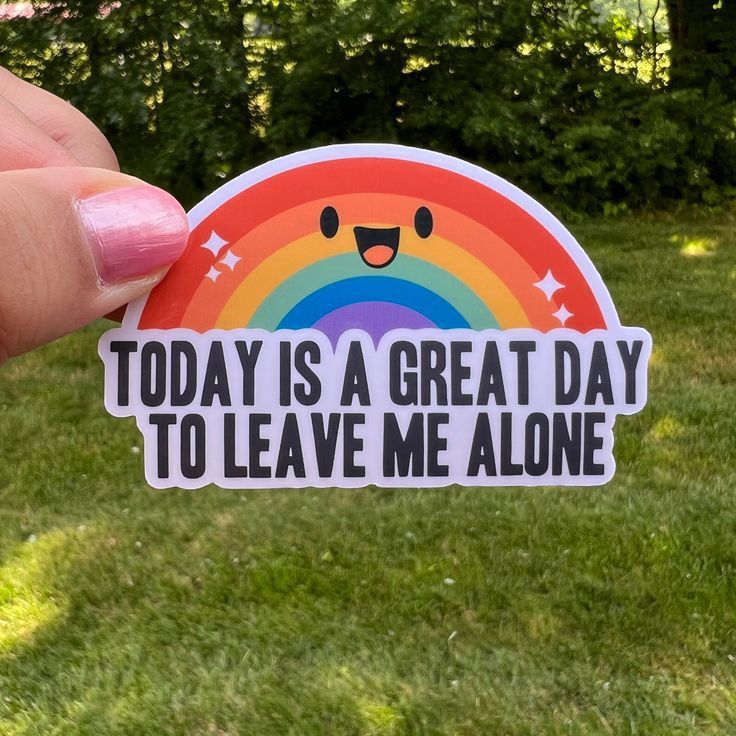
JPEG does not support transparency. Period. If your sticker is a circle, a JPEG will have a white, opaque square around it. When our machine cuts, it sees a square. We have two options:
Manual Intervention: Our prepress operator spends time tracing your artwork to create a cut path. This costs time, and if the operator misinterprets a subtle detail, the cut might trim off part of your design.
Print as Is: We print the white square, which looks unprofessional unless it is a rectangle.
A PNG, however, supports an alpha channel—essentially a mask that tells our software, "These pixels are opaque; these pixels are invisible." We can import the PNG, and the machine instantly recognizes the exact shape boundaries, allowing for a seamless kiss-cut or die-cut.
JPEG uses "lossy" compression. Every time you save a JPEG, it discards visual data to reduce file size. It does this by grouping pixels into blocks. Look closely at a JPEG logo with text; you will see "artifacts"—tiny, fuzzy squares—around the edges of the letters. When we print, those artifacts become visible. Fine serifs or thin lines can break apart or look muddy.
PNG uses "lossless" compression. It preserves every pixel exactly as you designed it. Text stays crisp. Gradients stay smooth. The file size is larger, but that is a trade-off we gladly accept for quality.
Many clients ask, "If I save my JPEG at 300 DPI, is it okay?"
Technically, yes, for rectangular photographic prints. But here is the hidden catch: JPEG compression artifacts affect sharpness even at 300 DPI. A 300 DPI PNG of a logo will always look sharper than a 300 DPI JPEG of that same logo because the PNG retains the hard edge definition.
The Factory Rule: If you are printing a custom shape or anything containing text, send a PNG with a transparent background at 300 DPI. If you are printing a rectangular photo label with no text edges, a 300 DPI JPEG is acceptable.
This is the number one cause of "color shock" when clients receive their order. I have seen beautiful, vibrant neon designs turn into dusty, muted versions of themselves because of this single oversight.
RGB (Red, Green, Blue): This is for screens. Your computer monitor, phone, and television use RGB. These colors are created with light. When your screen shows a bright neon pink, it is actually emitting red and blue light at full intensity to create that vibrant glow. RGB has a very large color gamut—it can display millions of colors, many of which are illuminated colors that don't exist in the physical ink world.
CMYK (Cyan, Magenta, Yellow, Black): This is for print. Our printers use layers of physical ink or toner applied to paper or vinyl. CMYK has a smaller color gamut than RGB. If you design a neon pink logo in RGB and send it to me to print, it will come out looking dusty or muted because that specific shade simply cannot be mixed from Cyan, Magenta, Yellow, and Black inks.
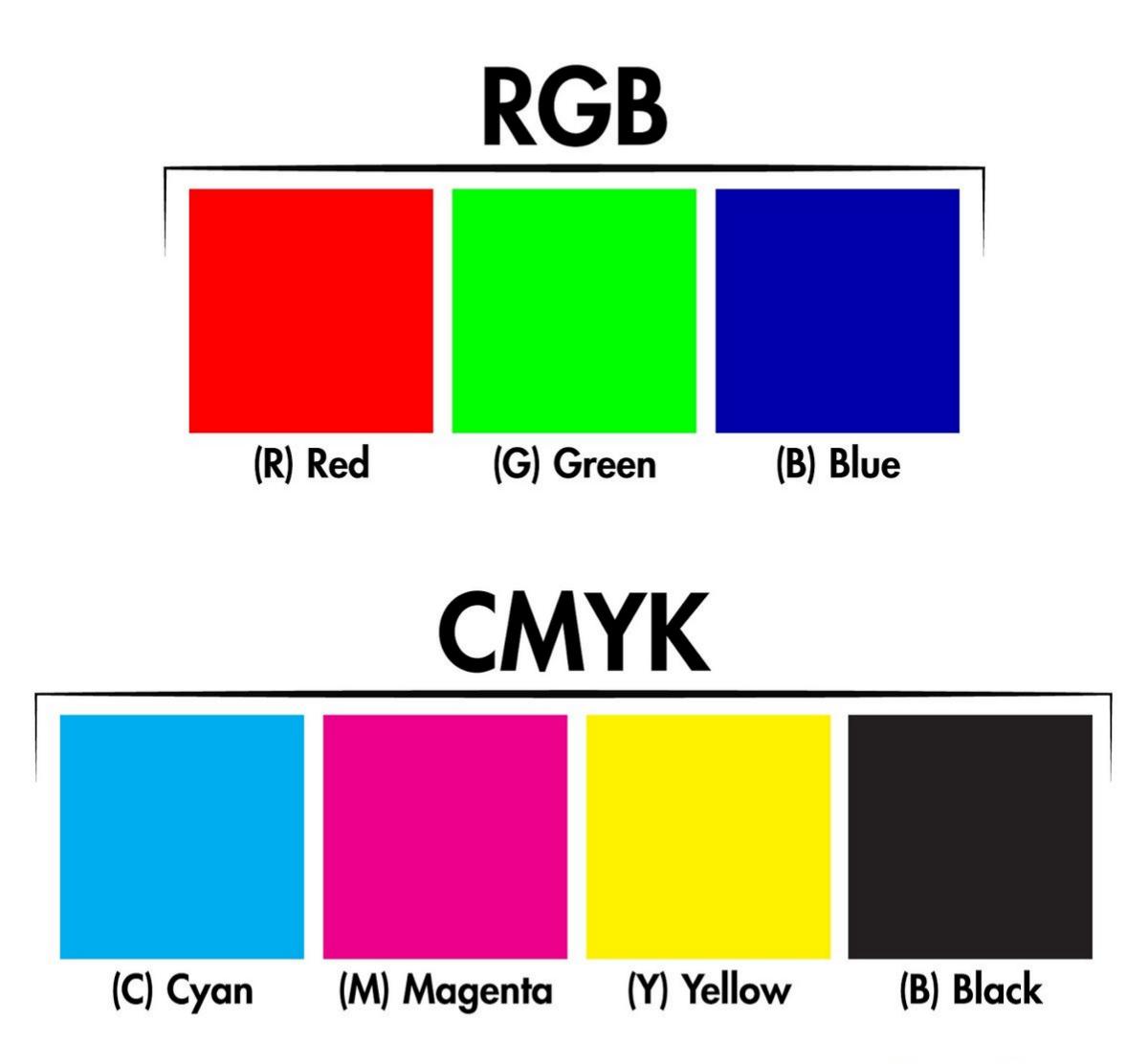
The Golden Rule: Always convert your file to CMYK before sending it to a factory. Do not rely on us to convert it during prepress. When you convert it yourself, you can see exactly how the colors will shift and make adjustments if needed.
Now, here is where things get interesting—and where many clients get confused. When you order special finishes like white ink or foil stamping (gold, silver, rose gold, holographic), these are not part of the CMYK process. We treat them as spot colors.
White ink is the most common spot color we work with. It serves two distinct purposes:
Underbase for Dark or Clear Materials: If you are printing on dark-colored vinyl (like black or kraft paper) or on transparent/clear vinyl, CMYK inks are translucent. If we print a colorful logo directly onto a black sticker, the black will show through and the colors will look dark and muddy. We solve this by printing a layer of white ink first—like painting a white primer on a wall before applying color. The CMYK inks then sit on top of that white base, allowing them to appear vibrant and true to color.
White Ink as a Design Element: Some designs call for white ink to be used as a visible color—for example, white text on a clear sticker, or a white logo on a kraft paper label. In this case, the white ink is printed as the top layer, not just an underbase.
How to set up white ink in your file: In a vector file like Adobe Illustrator, you need to create a separate layer clearly labeled "White Ink" or "Spot White." On that layer, place the exact shapes where you want white ink to appear. Define that layer's fill color as a spot color—typically named "White Ink" and set to 100% opacity. Our prepress team will then separate that layer and run it as its own print channel.
Foil stamping is another type of spot color—but it is applied using heat and pressure rather than ink. Foil is a thin metallic film that is transferred onto the sticker surface.
How it works: Instead of printing gold ink (which often looks flat and dull), we apply a metallic foil that reflects light. The result is a premium, luxurious finish that catches the eye.
How to set up foil in your file: Similar to white ink, you need to create a separate layer labeled "Foil" or "Spot Foil." On that layer, place the shapes, text, or logos that you want to appear in foil. We recommend using vector paths for foil areas—fine details and small text work best when the foil application area is clearly defined. Indicate the foil type (Gold, Silver, Rose Gold, etc.) in your file notes or during the ordering process.
If your brand has a specific color—say, Coca-Cola Red, Tiffany Blue, or a custom shade that defines your identity—relying on CMYK mixing is risky. CMYK values can shift slightly between print runs or on different materials.
Pantone Matching System (PMS) solves this problem. Pantone inks are pre-mixed to a precise formula before printing. When you specify a Pantone color (e.g., "PMS 185 C" for a specific red), we mix that exact ink and run it as a spot color channel, separate from CMYK.
When to use Pantone: Brand-critical colors, logos that must match across different packaging materials (stickers, boxes, bags), and large solid color areas where consistency is paramount.
How to set up Pantone colors in your file: In your vector software, define your color as a Pantone swatch—not as CMYK values. Name the swatch with the Pantone number (e.g., "PMS 185 C"). Our prepress software will recognize this as a spot color and separate it accordingly.
| Type | Purpose | When to Use |
|---|---|---|
| CMYK | Standard full-color printing | Most stickers with colorful designs, photos, gradients |
| White Ink | Underbase or visible white element | Printing on dark/clear materials; white text/logos |
| Foil | Metallic finishes (gold, silver, holographic) | Premium branding, luxury packaging, special editions |
| Pantone | Exact color matching | Brand-critical colors; consistency across multiple products |
For most orders, CMYK is all you need. But if your project involves special materials or finishes, understanding spot colors is essential. The key is communication: if you are unsure whether your design requires white ink or foil, reach out to your prepress team before finalizing your file. A 5-minute conversation can save hours of rework and ensure your stickers arrive exactly as you envisioned.
To ensure your order goes through production without a hitch, I recommend following these three "factory floor" rules. I check for these on every single file before it hits the press.
Add Bleed – The Safety Margin: This is non-negotiable. If your design has a colored background that goes to the edge of the sticker, you need to extend that color 1/8 inch (3mm) past the cut line. Why? Our die-cutting machine has a tolerance of about 1mm. If the color stops exactly at the cut line, even a 0.5mm shift in the material feed will leave a white sliver on the edge of your sticker. Bleed acts as a safety net, ensuring that no matter the slight mechanical variance, the color reaches the edge.
Outline Your Fonts – Avoid Substitution: If you send me a PDF and I don't have the specific font you used, my computer will substitute it with a default font—usually Times New Roman or Arial. This ruins your layout, especially with script fonts where spacing is critical. In Adobe Illustrator, select your text and go to Type > Create Outlines. In Photoshop, rasterize your text layers. This converts the text from a font file into a shape. The file becomes slightly larger, but the design is locked in exactly as you intended.
Separate the Cut Layer – Tell the Machine Where to Cut: If you have a complex shape—like a sticker that follows the outline of a character or a product—do not make us guess where to cut. Put the die-cut line on a separate layer in your file. Use a bright, unnatural color (like 100% Magenta) and label the layer clearly: "Cut Line – Do Not Print." We can then turn off that layer for printing but use it to generate the cutting path. This eliminates ambiguity and ensures your custom shape is exactly what you envisioned.
Flatten Transparency (For PDFs): If you use effects like drop shadows or transparencies in a PDF, ensure they are flattened correctly. When a PDF with live transparency goes through our RIP, it can sometimes create unexpected results—like a white halo around a drop shadow. Using the PDF/X-1a standard when exporting flattens all transparency, ensuring the file prints exactly as it looks on your screen.
Choosing the right file type is the foundation of a great sticker. Start with vector files (AI, PDF) for logos and text-based labels to ensure sharpness and precise die-cutting. Use high-resolution PNGs for artistic designs with transparent backgrounds. Always work in CMYK to avoid color surprises, and never forget to add bleed to your artwork.
Get these elements right, and you ensure your order moves through our digital presses and die-cutters without delays, landing on your doorstep exactly as you imagined—sharp, vibrant, and ready to stick.
Now that you know what to send, let’s talk about who should print it.
At StickerForgeco, we bridge the gap between factory precision and creative freedom. We know that whether you are a small business owner testing a new product line or a procurement manager ordering 50,000 units, your time and budget matter. Our entire workflow is designed to take the technical guesswork out of your hands.
We don’t just print stickers; we partner with you to ensure your branding stands out. Our prepress team lives by the principles outlined in this guide—we check every file for bleed, color mode, resolution, and cut paths before we ever power up a press. If we spot a potential issue, we reach out to you with solutions, not just problems.
Here is why businesses trust us with their artwork:
No Minimum Order (Digital Printing): Have a new design you want to test? You don’t need to order 1,000 units to get factory-quality results. With our digital printing capabilities, we run batches as low as you need. It is the perfect way to prototype your PNGs or AI files before scaling up to a massive production run.
Factory Direct Pricing (Save 30%): By manufacturing in-house, we cut out the middleman. You get the same premium materials (weatherproof vinyl, durable laminates, strong adhesives) used by the big agencies, but at wholesale prices. Expect to save at least 30% compared to retail print brokers. That saving goes straight back into your business.
9-Day Global Delivery: We know deadlines aren’t suggestions. Whether you need labels for a product launch or stickers for a conference next week, our streamlined production schedule delivers. From the moment you upload that perfectly formatted PDF with the bleed and outlined fonts, our team moves fast. We offer a reliable 9-day turnaround to get your custom stickers and labels delivered to your door, anywhere in the world.
Whether you need waterproof vinyl labels for a brewery, kiss-cut stickers for your brand’s unboxing experience, industrial-grade adhesive labels for packaging, or custom-shaped decals with white ink underbase, our factory floor is ready. We take your files—whether they are polished AI vectors or hand-drawn PNGs—and turn them into tangible branding assets that drive your business forward.
Ready to bring your design to life? [Contact StickerForgeco today] for a free prepress file check and a no-obligation quote. Let us handle the technical details so you can focus on what you do best—building your brand.
Q: Can I use a Canva file to print stickers?
A: Yes, but with caution. Canva defaults to RGB and often exports at lower resolutions. When you export, choose PDF Print and set the quality to 300 DPI. Avoid using the "Transparent Background" PNG export from Canva if it contains complex effects like shadows or glows, as it often flattens them poorly, resulting in a white halo around your design.
Q: What if I don't have Adobe Illustrator or Photoshop?
A: No problem. You can send a high-resolution PDF (300 DPI) or a PNG with a transparent background. At StickerForgeco, we handle a wide range of file types. If we have concerns about the resolution or cut path, our prepress team will reach out to you before we start printing to ensure it is perfect.
Q: Why do my colors look different on the proof than on my screen?
A: This is almost always an RGB vs. CMYK issue. Your screen emits light (RGB), while our printers use ink (CMYK). Certain bright blues, neon greens, and vibrant oranges in RGB are impossible to mix with standard CMYK ink. We always recommend ordering a physical proof if exact color matching is critical for your brand identity.
Q: What resolution should my PNG or JPEG be?
A: For professional printing, we require 300 DPI (dots per inch) at the final print size. A 2x2 inch sticker should be 600x600 pixels. A web graphic that is 72 DPI will look blurry and pixelated when printed. You can check the resolution in your image software under "Image Size."
Q: Do you accept files with layers?
A: Yes, absolutely. We prefer layered AI or PSD files, especially for complex orders involving white ink, foil, or custom die-cuts. Layers give us the flexibility to separate the artwork, the cut line, and any special finishes during prepress.
Q: What is the difference between kiss-cut and die-cut, and how does my file need to differ?
A: For kiss-cut stickers (where the sticker is cut but the backing remains intact, often on a sheet), we need a single cut line. For die-cut (individual stickers cut all the way through the backing), we need a cut line as well. The file setup is the same: provide a separate layer with your cut path. The difference is handled on our press settings, not in your file.





 +8618128095554
 sales@stickerforgeco.com
 +8618128095554