
Get bulk orders for 30% less than local suppliers, plus free samples.
Get bulk orders for 30% less than local suppliers, plus free samples.
You finally received that envelope full of vinyl art. Each sticker feels like a tiny piece of your personality waiting to be displayed. But now your expensive laptop sits there, clean and pristine, and your hand hesitates. One crooked placement. One trapped air bubble. One sticker covering a ventilation grill by accident. Suddenly, that act of self-expression feels like a risky surgery.
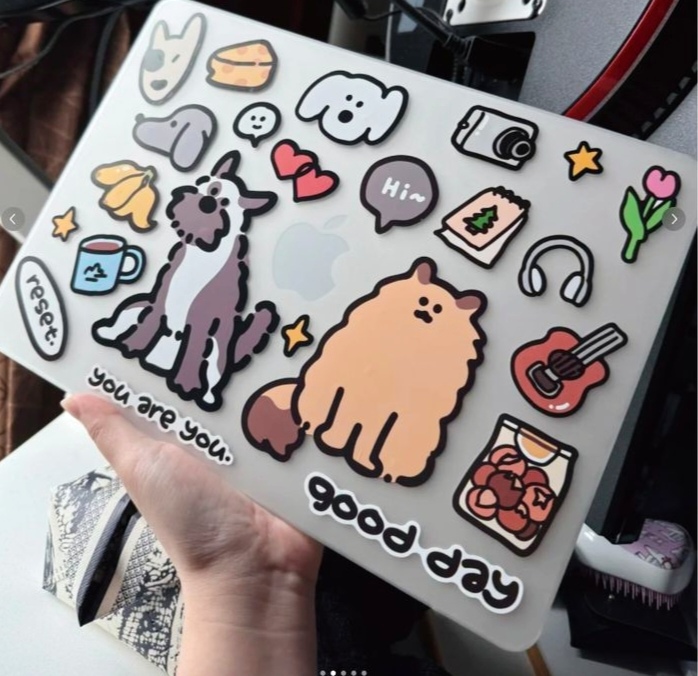
In the sticker manufacturing industry, application errors are one of the most common reasons customers end up disappointed — not because the stickers are low quality, but because they were applied without preparation or patience. The difference between a laptop that looks like a curated gallery and one that looks like a messy bulletin board comes down to a few simple techniques that most people never learn.
This guide walks you through everything. What stickers are made of. Why they became a cultural phenomenon. How to arrange them like a designer. Where to place them for maximum impact. And most importantly, how to apply them so they stay flat, smooth, and vibrant for years.
A laptop sticker is not just a piece of paper with glue on the back. The ones that survive daily use, bag friction, and temperature changes share a specific set of traits.
Most high-quality laptop stickers are made from vinyl, a synthetic material that resists water, scratches, and sunlight. Unlike paper stickers that absorb moisture and fade within weeks, vinyl stickers hold their color and shape. They are thin enough that you can close your laptop without creating a bump, yet durable enough to withstand being shoved into a backpack next to keys and notebooks.
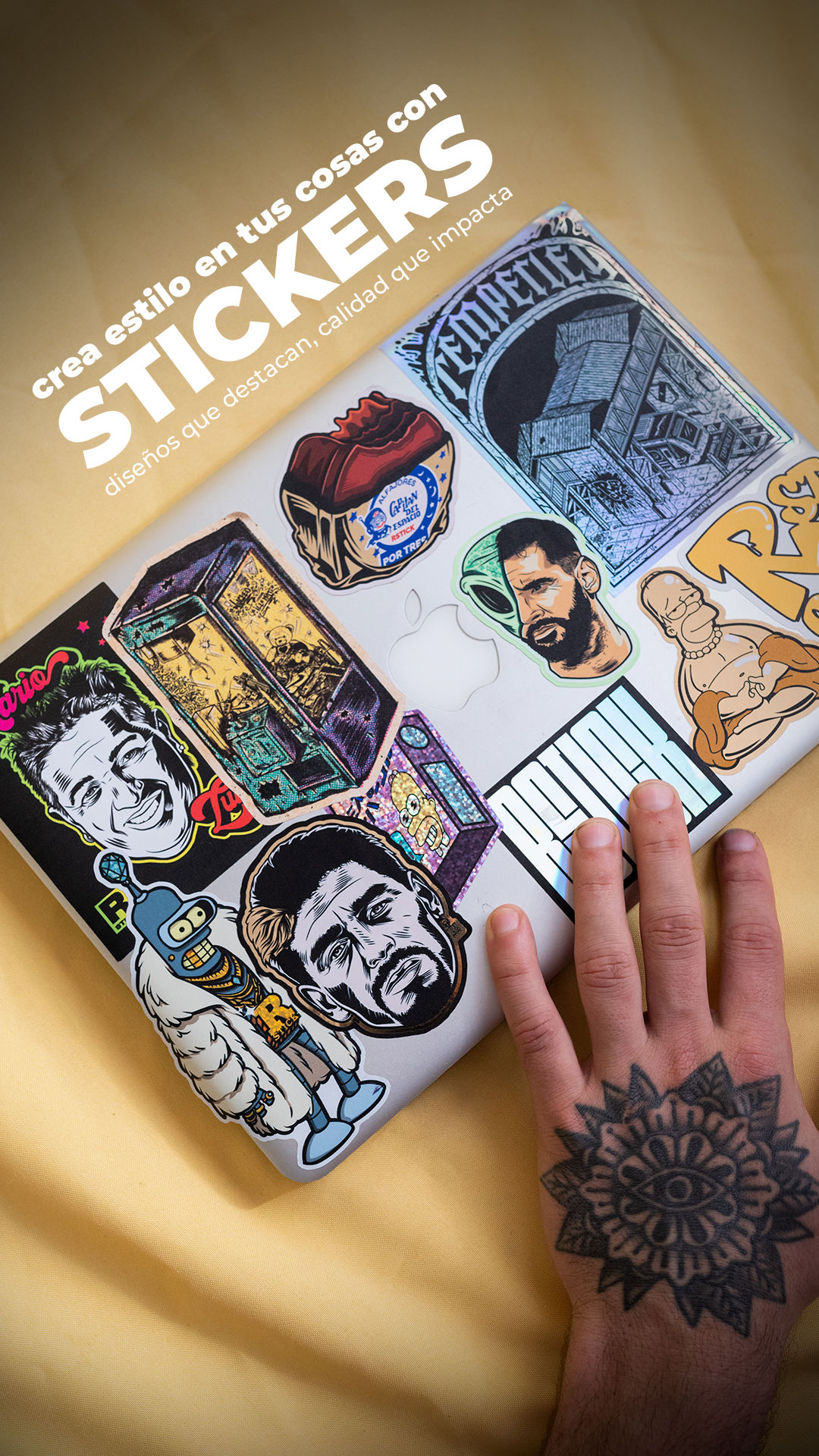
Here are the defining characteristics of a proper laptop sticker:
| Feature | What It Means for You |
|---|---|
| Waterproof | Spilled coffee? Rain on your bag? No damage. |
| UV-resistant | Sunlight won't bleach the colors over time. |
| Removable adhesive | Peels off cleanly without sticky residue (with quality products). |
| Scratch-resistant | Keys and pens won't immediately destroy the artwork. |
| Flexible | Conforms to slight curves on laptop lids. |
Cheap stickers exist. You can buy 50 for five dollars online. But those often use paper or low-grade adhesive. They bubble in heat. They tear when you try to remove them. And they leave behind a gummy mess that takes twenty minutes to scrape off. Invest in vinyl. Your future self will thank you.
Walk into any coffee shop or university library. Look at the laptops on the tables. You will see stickers everywhere. This is not a coincidence.
Laptop stickers exploded in popularity because they solve a simple human need: self-expression on a device that everyone owns. Your laptop looks like thousands of others straight from the factory. But with a few stickers, it becomes yours. It tells people what games you play, what causes you support, what memes make you laugh, or what bands shaped your teenage years.
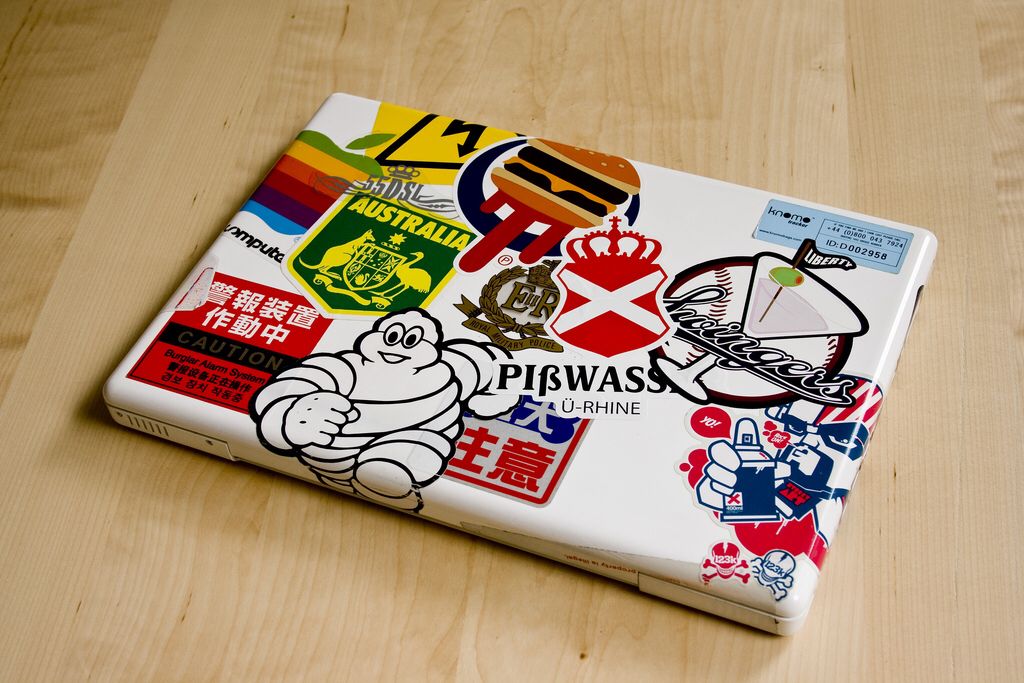
Beyond identity, stickers offer practical benefits:
Low-cost customization: A fresh skin or a new laptop costs hundreds or thousands of dollars. A sticker pack costs ten to thirty dollars.
Conversation starters: That obscure science fiction reference or vintage logo becomes an invitation. Someone will see it, smile, and say, "I love that too."
Flaw coverage: Got a scratch on your lid? A well-placed sticker hides it completely.
Community signaling: Developers put programming language stickers on their machines. Climbers put national park stickers. It is a silent way of saying, "I am one of you."
Stickers turn a generic tool into a personal artifact. That emotional connection explains why people guard their sticker collections so carefully and why applying them feels like a ceremony rather than a chore.
You might think you can just peel and stick. And technically, you can. But if you skip these four steps, you will be disappointed within a few months when edges curl, colors fade unevenly, or the sticker refuses to come off without a fight.
Your laptop lid looks clean. Touch it with your finger. Now look at the spot. You see nothing, right? But that invisible oil transfers to the surface every time you open your laptop, close it, or carry it under your arm. Adhesive hates oil. It cannot bond chemically to a surface coated in skin grease.
What to do: Use an isopropyl alcohol wipe (70% or higher) or a microfiber cloth with a tiny amount of lens cleaner. Wipe the entire area where the sticker will go. Let it air dry for thirty seconds. Do not use household glass cleaners. Many contain fragrances or moisturizers that leave their own residue behind.
Not all stickers are created equal. Paper stickers belong on notebooks and envelopes, not on laptops. They absorb moisture from the air, the ink fades under sunlight, and when you eventually try to remove them, they tear into a hundred little pieces.
What to look for: Vinyl with a UV laminate. If the product listing does not mention vinyl, assume it is paper. For custom orders, always ask the supplier specifically about outdoor durability. A laptop sticker lives in an "outdoor-like" environment: temperature changes, sunlight, friction.
Here is a warning that most sticker guides skip. Some premium laptops use soft-touch coatings, rubberized finishes, or specialized anodizing. Think older ThinkPads, certain Dell XPS models, or matte-black gaming laptops. These surfaces react unpredictably with adhesives.
The risk: You might remove a sticker after two years and find that the coating underneath has faded differently than the exposed area, leaving a permanent "ghost" of the sticker. Or the adhesive bonds so aggressively that it pulls up the coating itself.
The fix: If you own a laptop with an unusual finish, test a small, cheap sticker on the bottom case first. Leave it for a week. Remove it. See what happens. Alternatively, apply a clear protective skin to the lid first, then put your stickers on that skin.
This one surprises people. Sunlight is sneaky. It fades everything over time, but it fades exposed surfaces faster than covered ones. If you put a light-colored sticker on a dark laptop lid and leave it there for two years, the area around the sticker will tan slightly from UV exposure. Remove the sticker, and you will see a perfect rectangle of the original color underneath.
The reality: This is not a defect. It is physics. If you plan to keep your laptop for many years or resell it later, place your stickers on the bottom cover (where sunlight never hits) or use a removable skin as a backing layer.
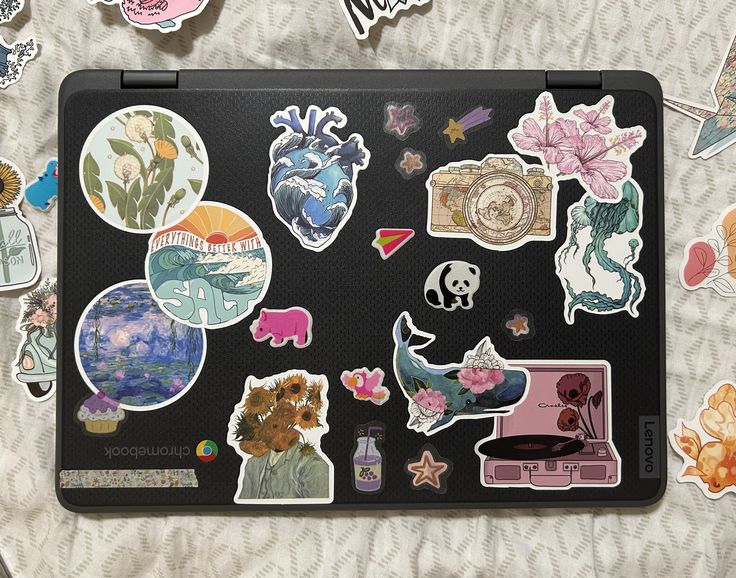
Arrangement separates a chaotic mess from an intentional design. You can throw stickers on randomly and call it "sticker bomb" style, and that works for some people. But even a sticker bomb follows hidden rules.
Before you peel a single backing, gather all your stickers on a table. Look at them. Sort them by size, color, and theme. This preview step takes three minutes and saves you from regret.
| Style | Best For | How to Do It |
|---|---|---|
| Grid alignment | Stickers that are all the same shape (rectangular, square) | Line them up parallel to the laptop edges. Equal spacing. |
| Corner cluster | A few medium stickers and many small ones | Put the largest sticker in the bottom-right corner. Build outward and upward. |
| Edge L-shape | Minimalists with 4–6 stickers | Run stickers along the top edge and right edge, leaving the center empty. |
| Full coverage | "Sticker bomb" look with 20+ stickers | Overlap edges. Cover the entire lid. No empty space. |
| Floating center | One hero sticker | Place one large, beautiful sticker exactly in the middle. Nothing else. |
Step 1: Photograph your laptop lid. Print the photo or open it on a tablet. Use editing software or just your finger to move virtual stickers around. This costs nothing and lets you experiment wildly.
Step 2: Identify your anchor stickers. These are your largest or most important designs. Place them first. They set the visual weight of the whole composition.
Step 3: Fill negative space with small stickers. Look at the gaps between your anchors. Those gaps want to be filled. Use your smallest stickers as gap-fillers.
Step 4: Create visual balance. If you put a big sticker in the top-left corner, balance it with a medium sticker in the bottom-right. Avoid clustering everything on one side unless that is an intentional choice.
Step 5: Use painter's tape for a dry run. Cut small loops of painter's tape (sticky side out) and attach them to the backs of your stickers without removing the actual backing. Stick them to your laptop. Step back. Look. Adjust. This is the single best trick for avoiding placement regret.
Different surfaces on your laptop offer different advantages and risks. Here is an honest assessment of each zone.
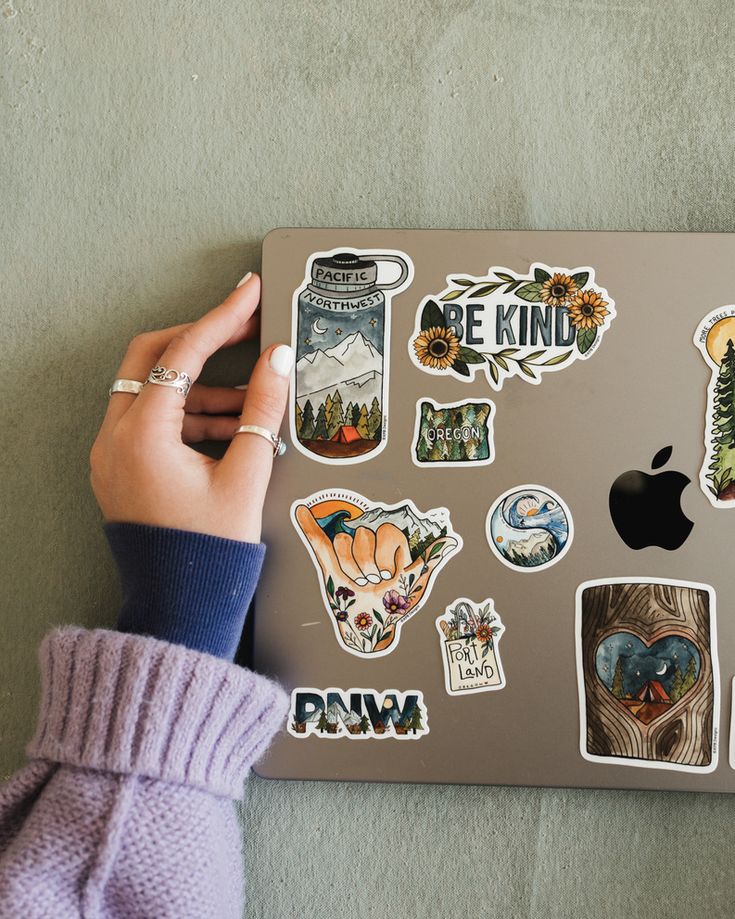
Best for: Almost everything
Why it works: Large, flat, rarely touched, highly visible
Watch out for: The edge lip (stickers that hang over will catch on bags)
The lid is the billboard. When you work in a public space, the lid faces the room. People see your stickers while you type. This is where 80% of your stickers should go if you want to express yourself to the world.
Best for: Small, low-profile stickers
Why it works: Visible to you while typing, good for personal reminders
Watch out for: Friction from wrists, skin oils, sweat
Your wrists rest here for hours. They rub back and forth as you type. That friction wears down ink and laminate faster than anywhere else on the laptop. If you put stickers here, accept that they will look faded within a year. Also, raised stickers will irritate your skin. Keep these stickers small and flat.
Best for: "Easter egg" stickers, band logos, inside jokes
Why it works: No one sees it unless you flip the laptop over
Watch out for: Vents (do not block airflow), rubber feet (do not cover them)
The bottom is your private gallery. You can put controversial, personal, or weird stickers here without explaining them to coworkers. It is also the safest place for resale value, since sunlight never hits this surface and fading is minimal.
Best for: Long, thin strip stickers
Why it works: Unique placement that catches attention
Watch out for: Movement (the hinge flexes every time you open the laptop)
Stickers placed directly on moving parts will peel. The hinge is a moving part. Only put stickers here if they are narrow enough to stay entirely on the non-moving portion of the hinge barrel.
Best for: Almost nothing
Why it works: It doesn't, really
Watch out for: Rubberized bezels (adhesive fails quickly), thin surface (stickers overhang)
Skip the bezel. It is too narrow. Most bezels are made of soft rubber that rejects adhesive. Even if a sticker sticks initially, it will peel within weeks.
You cleaned the surface. You arranged your layout. You did a dry run with painter's tape. Now it is time for the actual application. Do not rush.
Isopropyl alcohol wipe (or 70% alcohol + microfiber cloth)
Painter's tape (blue or green, not masking tape)
Credit card or plastic squeegee
Sewing needle (for bubble emergencies)
Step 1: Final cleaning. Wipe the target area with alcohol. Let it dry completely. Do not touch the cleaned area with your fingers.
Step 2: Peel the backing slowly. Start at a corner. Peel at a sharp angle (almost folding the backing back onto itself). This keeps the adhesive flat and prevents stretching. Touch only the very edges of the sticker. Fingertip oils on the adhesive will create weak spots.
Step 3: Use the hinge method for large stickers. Place the sticker (still on its full backing) exactly where you want it. Tape one edge down with painter's tape. Flip the sticker open like a book. Peel the backing off. Close the sticker onto the laptop. This guarantees perfect alignment every time.
Step 4: Apply from the center outward. Touch the center of the sticker down first. Use your thumb or a credit card to press outward toward the edges in smooth, firm strokes. This pushes air ahead of the adhesive instead of trapping it underneath.
Step 5: Remove transfer tape (if present). Some vinyl stickers come with a transparent transfer tape on top. Peel this off at a 45-degree angle, pulling back over itself. If the sticker lifts with the tape, press down harder and try again.
Step 6: Burnish the edges. Run your thumbnail or the credit card along all four edges of the sticker. Apply firm pressure. This edge seal is what prevents dust and moisture from working their way under the adhesive over time.
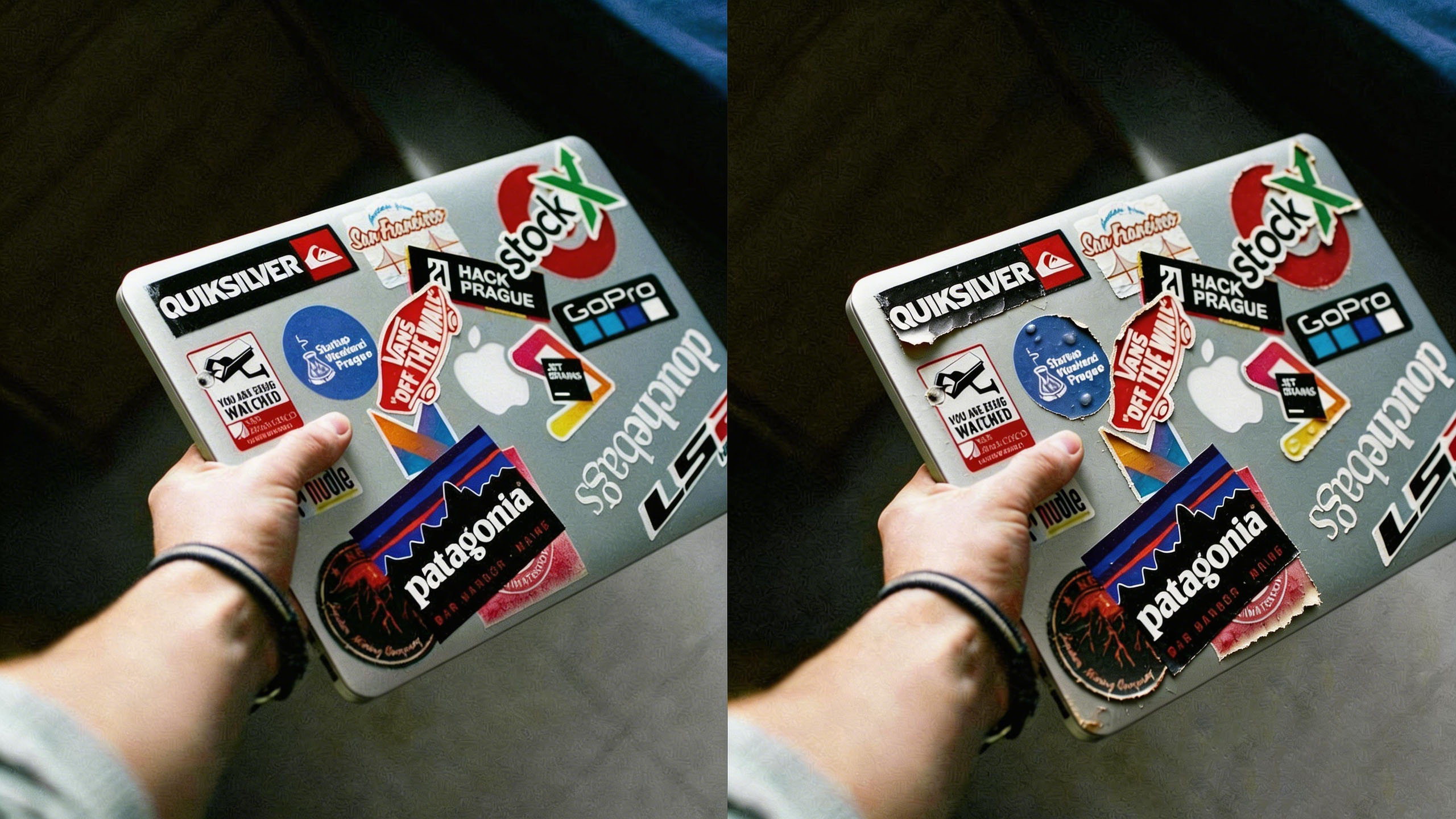
| Problem | Solution |
|---|---|
| Small air bubble | Poke with a sewing needle. Press air out toward the hole. |
| Large bubble | Peel back to the bubble point. Reapply slowly with a credit card. |
| Slight misalignment | If the sticker is not fully pressed, lift from a corner and reposition. If fully pressed, you are stuck. |
| Dust particle underneath | Lift the sticker with tape. Remove dust with another piece of tape. Reapply. |
These mistakes appear repeatedly across customer feedback and support requests. Learning from them will save time, money, and frustration.
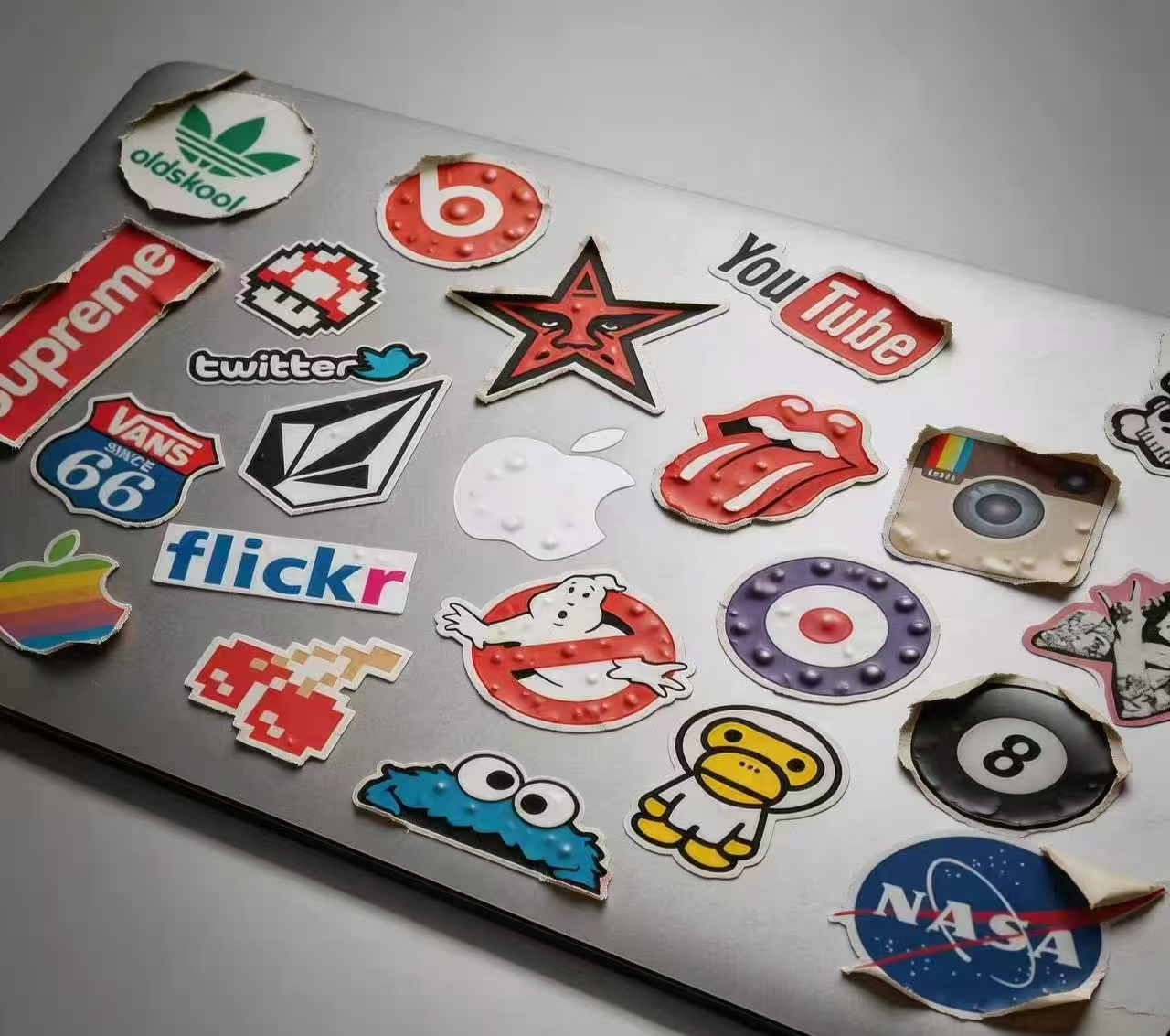
What happens: You press one corner down, then try to lay the rest flat. It wrinkles. It bubbles. You get angry.
Correct way: Center first, then outward.
What happens: The adhesive grabs before you have aligned the sticker. Now it is crooked and stuck.
Correct way: Hover the sticker over the surface. Touch lightly. Adjust. Then press firmly.
What happens: Large stickers drift as you try to position them. They end up rotated by two degrees, which looks terrible.
Correct way: Tape the edge. Flip. Peel. Close. Perfect every time.
What happens: Your laptop runs hot. The fan works harder. Eventually, the processor throttles down to save itself.
Correct way: Feel for warm air coming from the laptop. Those are vents. Stay away.
What happens: A year later, you need to replace the battery or upgrade the SSD. You cannot open the case without destroying your stickers.
Correct way: Keep the bottom case clear around the edges where screws live.
What happens: Three months later, the sticker looks terrible. You try to remove it. It tears into confetti and leaves glue everywhere.
Correct way: Buy vinyl. Pay a little more. It is worth it.
Laptop stickers are one of the simplest, most affordable ways to make a mass-produced device feel like yours. But the difference between a sticker job that looks intentional and one that looks accidental comes down to a few small habits.
Clean the surface. Every time.
Choose vinyl. Avoid paper.
Plan your arrangement. Do a dry run with tape.
Apply from the center outward. Press the edges firmly.
Keep stickers off vents, hinges, and screw holes.
Follow those rules, and your stickers will last for years. They will survive backpack friction, coffee spills, and afternoon sunlight. And when you eventually peel them off to sell the laptop or start a new design, quality vinyl stickers will come away clean, leaving no trace behind except the memory of the art you loved.
Sometimes, the perfect sticker does not exist yet. You have a specific idea. A logo you designed. A phrase that means something to your team. A piece of artwork from your favorite independent creator. You cannot find it in any shop or pack.
That is where custom printing comes in.
StickerForgeco specializes in custom stickers for laptops, packaging, and more. Whether you need custom laptop stickers or custom labels for your products, we deliver high-quality vinyl with residue-free adhesive.
Looking for custom stickers or labels for your laptop, products, or brand? Contact us for a quote!
Yes, if you use quality vinyl stickers. Heat the sticker gently with a hairdryer on low setting for 10–15 seconds to soften the adhesive. Peel from a corner at a 45-degree angle, pulling slowly. If residue remains, remove it with isopropyl alcohol or a small amount of adhesive remover (test on a hidden area first). Avoid scraping with metal tools or your fingernails, which can scratch the laptop finish.
Use a sharp sewing needle or a pin to poke a tiny hole in the center of the bubble. Then use a credit card wrapped in a soft cloth to press the air out toward the hole. For bubbles near the edge, you can sometimes lift the edge back to the bubble and reapply slowly. Do not use a knife or razor blade; the cut will be visible and can tear the sticker over time.
Stickers do not void your laptop warranty. Warranty coverage applies to hardware defects, not cosmetic modifications. However, some manufacturers (Apple, Razer, certain Lenovo models) use surface finishes that may show uneven fading or minor residue after long-term sticker use. If you are concerned about resale value, place stickers on a clear protective skin first, or limit stickers to the bottom cover where sunlight never causes fading.
Paper stickers are made from cellulose fibers with a basic adhesive. They absorb moisture, fade in sunlight within weeks, tear when removed, and often leave behind sticky residue or shredded paper. Vinyl stickers are synthetic, waterproof, UV-resistant, flexible, and designed to remove cleanly. For laptops that encounter temperature changes, bag friction, and occasional moisture, vinyl is the only sensible choice. Paper belongs on notebooks and envelopes, not on laptops.
Limit stickers to the bottom cover (D-shell) or use a removable clear skin as a backing layer. The bottom cover is invisible during normal use, so fading is minimal, and most buyers never flip the laptop over. If you want stickers on the lid, choose a clear vinyl skin that fits the entire lid surface. Apply your stickers to the skin. When it is time to sell, peel off the skin (which removes cleanly) and your original laptop finish is untouched. Some sticker manufacturers also offer magnetic or cling-style vinyl that holds without permanent adhesive, though these are less common.
This guide provides everything needed to go from a nervous first-timer to someone who applies laptop stickers with confidence. Take time with the layout. Clean the surface thoroughly. And enjoy the process of making that expensive, generic laptop feel like it finally belongs to you.
Ready to create your own custom laptop stickers? Visit StickerForgeco to start your design today.






 +8618128095554
 sales@stickerforgeco.com
 +8618128095554