
Get bulk orders for 30% less than local suppliers, plus free samples.
Get bulk orders for 30% less than local suppliers, plus free samples.
You bought a beautiful pack of glossy paper labels, excited to create professional-looking stickers for your small business or personal project. You feed one into your home printer, hit print, and… the ink smears, the colors look dull, or the paper jams and ruins your machine.
I have seen this exact frustration countless times. The short answer is yes, you can print glossy paper labels with a home printer. But the real question is: how? And will the result be waterproof, smudge-proof, and durable?
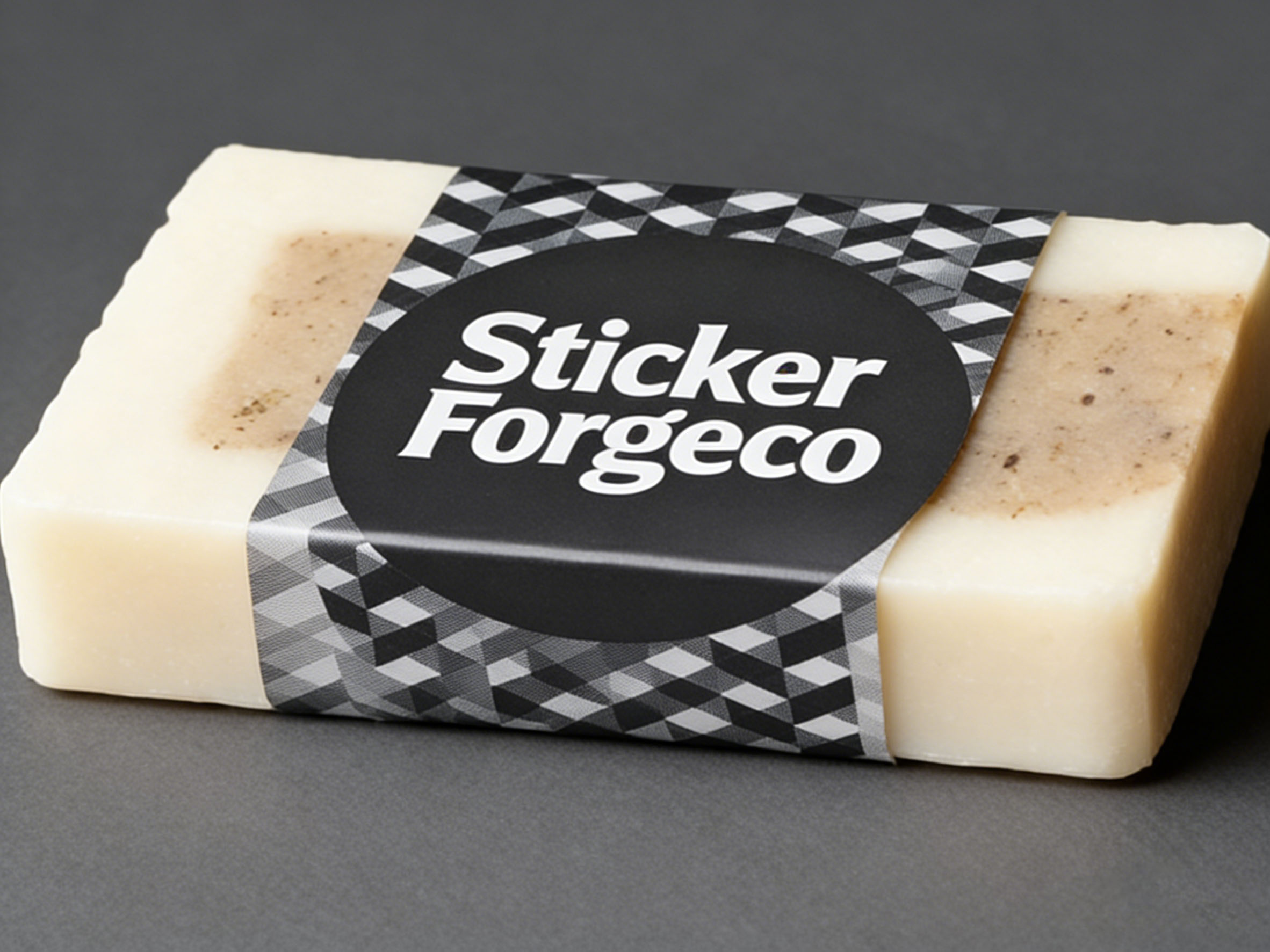
This guide walks you through everything you need to know. We will cover what glossy paper labels actually are, which printers work, what goes wrong when you use the wrong materials, and how to get perfect results every time. Let us get started.
Glossy paper labels are sticker materials with a shiny, reflective coating on the printable side. This coating gives your labels a vibrant, professional finish that makes colors pop and images look sharp. Think of the shiny label on a premium candle jar or a high-end cosmetic bottle. That is the look glossy paper labels create.
The "glossy" finish comes from a special coating applied to standard paper label stock. This coating is designed to receive ink (in inkjet printers) or toner (in laser printers) while creating that smooth, light-reflecting surface. Underneath the coating is the printable paper layer, then an adhesive layer, and finally a release liner that you peel away before application.
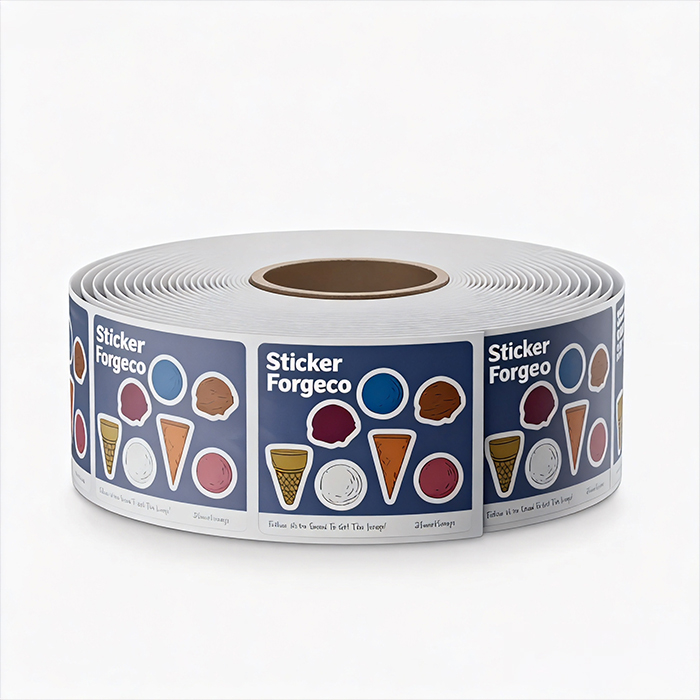
Glossy paper labels are popular for product packaging, branding stickers, party favors, and any application where you want a polished, eye-catching appearance. However, that glossy coating is exactly what creates challenges when printing at home. The printer must be able to lay ink or toner onto this smooth surface without it beading up, smearing, or failing to adhere properly.
Not every home printer can handle glossy paper labels. Your printer falls into one of two categories, and each interacts with glossy materials differently.
Inkjet printers are the most common type for home use. They work by spraying tiny droplets of liquid ink onto the paper. Many inkjet printers can print on glossy paper labels, provided you buy the right type of labels. Inkjet-compatible glossy labels have a micro-porous coating that absorbs the liquid ink quickly, preventing smudging.
Laser printers use heat and pressure to fuse dry toner powder onto the paper. Laser printers can also print on glossy labels, but they require labels specifically designed for laser printers. These labels use a coating that can withstand the high heat of the fuser unit (which can reach 200°C or 400°F) without melting the adhesive or causing the paper to curl.
A critical warning: You cannot use inkjet labels in a laser printer, and you cannot use laser labels in an inkjet printer. The chemistry and physical properties are completely different. Using the wrong type will lead to the problems described in the next section.
All-in-one or multi-function printers (print, scan, copy) work the same way as standard inkjet or laser printers. Check your printer's manual or control panel to confirm whether it is inkjet or laser. This is your first and most important step.
Using the incorrect glossy paper labels for your printer type leads to predictable and frustrating failures. Here is what happens in each scenario.
If you use inkjet labels in a laser printer: The heat from the laser printer's fuser will melt the inkjet coating and the adhesive. The label paper will curl severely, wrinkle, and often wrap around the internal rollers. The melted adhesive can permanently coat the printer's drum and fuser unit, destroying the printer. This is the most expensive mistake you can make.
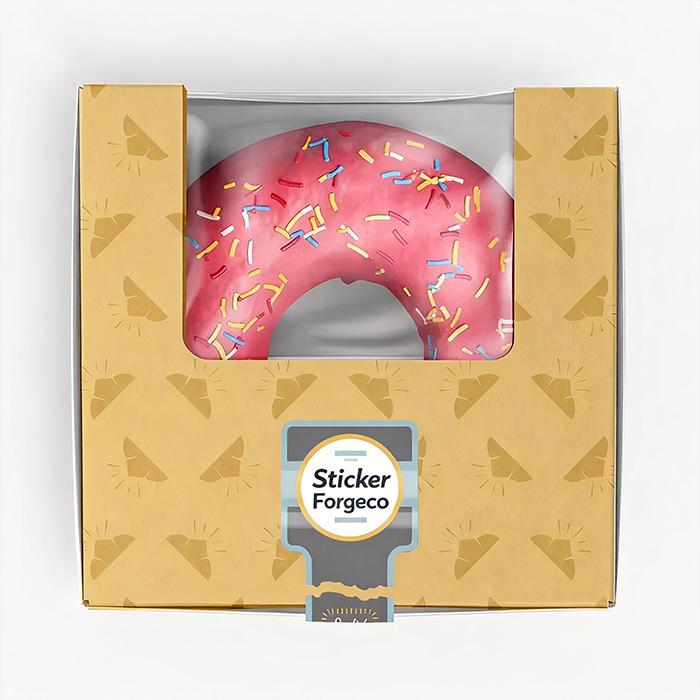
If you use laser labels in an inkjet printer: Laser labels lack the absorbent coating needed for liquid ink. The ink will sit on top of the glossy surface and will not dry. You will see smudging, ink that rubs off with light touch, and colors that look muddy or uneven. The ink may also bead up into droplets instead of forming solid colors.
Other common problems even with the right paper include:
Paper jams: Glossy labels are often thicker than standard paper. Home printers with straight paper paths handle thick materials better than those with tight U-turn paths.
Poor adhesion: If the printer's heat (laser) or ink (inkjet) damages the adhesive layer, labels may peel off later.
Fading: Standard glossy paper labels are not waterproof. A single drop of water can ruin your print.
These problems are avoidable. The next sections show you exactly how.
Follow these steps to successfully print glossy paper labels with an inkjet printer.
Step 1: Buy the right labels – Look for packaging that explicitly says "Inkjet Compatible" or "For Inkjet Printers." It should also say "Glossy" or "High-Gloss." Do not guess. The packaging must state inkjet compatibility.
Step 2: Load labels correctly – Most inkjet printers print face-down. This means the glossy (printable) side should face down in the paper tray. Load only a few sheets at a time to prevent jams. If your printer has a straight-through rear feed slot, use that instead of the main paper tray.
Step 3: Adjust printer settings – Before printing, go to your printer's properties or preferences. Change the paper type from "Plain Paper" to "Photo Paper," "Glossy Paper," or "Premium Glossy Paper." Set print quality to "High" or "Best." These settings reduce the amount of ink sprayed and allow more drying time.
Step 4: Print a test – Print one sheet first, not a large batch. Let the printed sheet sit for 2–5 minutes before touching it. Glossy surfaces take longer to dry.
Step 5: Allow full drying – For best results, let your printed labels dry for 30 minutes before applying them. This prevents smudging during application.
Optional tip: If your inkjet uses pigment-based ink (common in higher-end models), your labels will be more water-resistant. Dye-based ink (standard in most home printers) will run if wet.
Laser printers require a different approach. Here is how to do it correctly.
Step 1: Buy laser-compatible glossy labels – Look for packaging that says "Laser Compatible," "For Laser Printers," or "Laser Guaranteed." These labels use heat-resistant adhesives and coatings. Never use inkjet labels in a laser printer.
Step 2: Check your printer's specs – Some laser printers, especially older or low-end models, cannot handle label sheets. Look up your printer's manual and search for "label printing" or "media weight." Avoid using labels if your printer has a very tight paper path.
Step 3: Load labels properly – Use the straightest paper path available. On many laser printers, this is the manual feed slot or rear feed. Load glossy side up or down according to your printer's instructions (check your manual).
Step 4: Adjust printer settings – In your printer driver, select "Labels," "Thick Paper," or "Heavy Paper" as the media type. This tells the printer to slow down and increase fuser temperature for better toner adhesion.
Step 5: Print a test and inspect – After printing, immediately check if the toner rubs off when you scratch it lightly with your fingernail. If it does, your printer's fuser is not hot enough for that label stock. Try a different brand of labels.
Important warning: Never print the same label sheet twice through a laser printer. The heat from the first pass can already affect the adhesive. A second pass can melt it completely.
Not all glossy paper labels are created equal. When shopping for labels to use at home, look for these quality features.
Printer compatibility clearly marked – The packaging should prominently state "Inkjet" or "Laser." If it does not specify, do not buy it. Universal labels that claim to work in both printers often perform poorly in both.
Consistent thickness – Good glossy label paper has a uniform thickness (usually between 140–200 gsm or 52–74 lb). This prevents jams. Labels that are too thick (over 250 gsm / 92 lb) often jam in home printers.
Strong but not permanent adhesive – For most home uses, a "permanent" adhesive is fine. However, if you might remove labels later, look for "removable" adhesive. Avoid "extra permanent" or "industrial" adhesives as they can be too aggressive.
Smooth, even gloss coating – Low-quality labels have uneven gloss finishes that cause patchy printing. Hold the sheet at an angle under light. The reflection should be consistent across the whole sheet.
No curling out of the package – Labels that arrive already curled will jam in any printer. Good glossy labels lie completely flat.
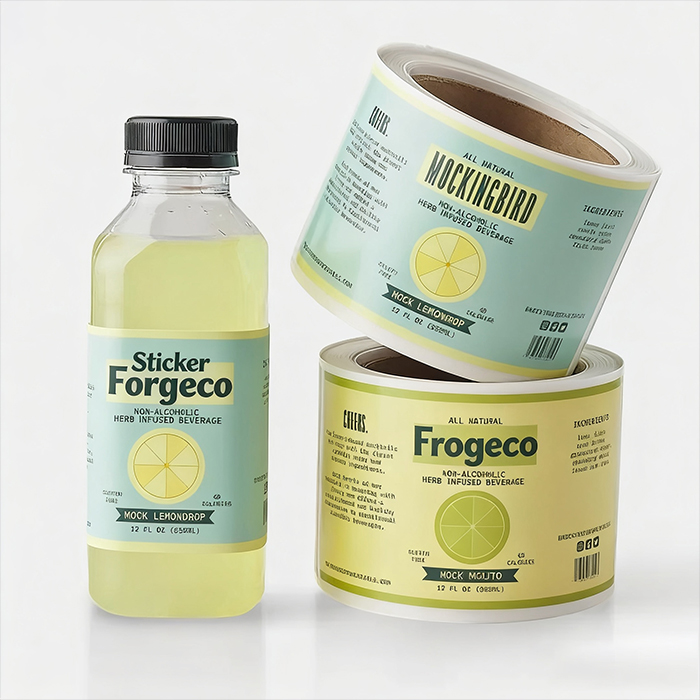
The packaging contains all the information you need. Before you buy, check these specific features.
Printer type icon – Look for a small icon showing a printer with the word "Inkjet" or "Laser." Some brands use color coding (blue for inkjet, red for laser).
Sheet size – Most home printers handle A4 (210 x 297 mm) or Letter (8.5 x 11 inches). Check your printer's supported sizes before buying.
Labels per sheet – This tells you how many individual labels are on each sheet. Common configurations include 1 large label per sheet, 4 per sheet, 6 per sheet, 8 per sheet, 10 per sheet, or 24 small labels per sheet.
Edge margin – The packaging should show the distance from the edge of the sheet to the first label. If this margin is too small (under 5 mm), your printer may print on the label's release liner instead of the label itself.
Temperature range (for laser labels) – Good laser-compatible packaging lists the maximum fuser temperature (e.g., "Up to 200°C / 400°F"). If this is not listed, the manufacturer is not serious about laser compatibility.
Water resistance – Unless the packaging specifically says "Waterproof" or "Water-resistant," assume your printed labels are not waterproof. Most glossy paper labels are not.
Even when you follow the steps above, problems can occur. Here is how to avoid or fix the most common issues.
Problem: Ink smudges or never dries (inkjet) – You are using too much ink, or the paper is not truly inkjet-compatible. Solution: Lower your printer's ink density settings (often called "draft mode" or "ink save"). Switch to a higher-quality glossy label brand.
Problem: Toner flakes off (laser) – The fuser is not melting the toner fully onto the glossy surface. Solution: Increase the paper thickness setting to "Heavy" or "Cardstock" so the printer runs slower and hotter. If this fails, try a different brand of laser-compatible glossy labels.
Problem: Paper jams – Your glossy labels are too thick, or you loaded too many sheets. Solution: Never load more than 5–10 sheets at a time. Use the printer's manual feed slot if available. Consider buying labels with lower weight (gsm).
Problem: Colors look dull – Glossy paper can sometimes make colors appear darker or less vibrant if the printer settings are wrong. Solution: Set your printer to "Photo" or "Glossy" paper mode. In your design software, use a brighter, more saturated color palette to compensate.
Problem: Labels peel off later – The adhesive was damaged by heat (laser) or ink saturation (inkjet). Solution: Allow longer drying/cooling time before applying. Reduce ink saturation. Switch to a more robust label brand.
Problem: Printer no longer picks up label sheets – The rollers have become slick from label adhesive residue. Solution: Clean your printer's pick-up rollers with a damp lint-free cloth and a roller cleaner or isopropyl alcohol.
So, can you print glossy paper labels with a home printer? Yes, you can – provided you match the label type to your printer. Inkjet printers need inkjet-compatible glossy labels. Laser printers need laser-compatible glossy labels. Use the wrong combination, and you risk ruining your printer or getting unusable smudged prints.
To succeed, follow these key principles:
Check your printer type first (inkjet or laser)
Buy labels clearly marked for your printer
Adjust your printer settings (paper type and quality)
Test one sheet before printing a batch
Allow proper drying or cooling time
Glossy paper labels give you a professional, shiny finish that standard paper cannot match. With the right materials and settings, your home printer can produce labels that look like they came from a professional print shop.
You now know how to print glossy paper labels at home. But what if you want professionally printed glossy paper labels without the trial and error? What if you need custom shapes, sizes, or designs that your home printer cannot handle?
That is where Sticker Forge comes in. We specialise in manufacturing high-quality, customised glossy paper labels for businesses and individuals worldwide. But we do not just produce Glossy Paper Labels. We also customise all other types of labels, including matt labels, glossy labels (vinyl), clear labels, and more. Whether you need a small batch for a craft fair or thousands of labels for product packaging, we deliver consistent, vibrant, and durable results.
Our glossy paper labels are compatible with manual application (by hand) or machine application for high-volume users. We offer:
Custom shapes and sizes – Any design you can imagine
Vibrant, smudge-proof printing – No test prints or ruined sheets
Quick turnaround – From artwork to your doorstep
Competitive pricing – Especially for larger quantities
Do not waste time and money on home printer frustrations. Let StickerForge handle the production while you focus on growing your business. Contact us today to discuss your custom glossy paper labels.






 +8618128095554
 sales@stickerforgeco.com
 +8618128095554